What each check reads
The Ubiquiti Store (store.ui.com) builds its pages from public data, the same data your browser loads when you open the store. UniFi Stock Watcher reads that data directly. It needs no login and no API key, and it doesn't scrape the pages you see.
A check reads the store's 8 category pages, which between them list the whole catalog: about 500 products. For each product's variants they give the stock status (available, sold out or coming soon), the price, and the store's own restock date when it has one. That's 8 requests a check, whether you watch one product or fifty.
Each check is compared with the one before. The first check after you click Start watching sets the baseline. After that, any product whose stock changes shows up in the Store changes feed, and a product on your watch list that comes back in stock alerts you.
A few products aren't on any category page, and Ubiquiti renames and moves products now and then. A watched product the category pages don't list is looked up on its own page. The store often answers that with a redirect, which the app follows. It then matches the product by its current address, its former addresses or its product ID. When none of those match, the app marks the product delisted rather than guess.
Categories get renamed too. Category requests follow the store's redirects, and once a day the app looks for new categories carrying products its list misses. Every night, an automated check runs against the real store on GitHub, so a change in the store's data is caught the day it happens.
How often, and going easy on the store
The app checks every minute by default. Settings → Watching sets anything from every 15 seconds to once an hour, and Check now (F5) checks at once.
- Only what changed is downloaded. The store labels each category page with a fingerprint (an ETag). The app sends back the fingerprint of the copy it already has, and when nothing has changed the store answers not modified with no data. A check with no changes is a few kilobytes instead of about 430 KB. Each page is still downloaded in full at least every 10 minutes.
- A few requests at a time. The 8 requests go out at most 4 at once, over connections the app keeps open between checks.
- The store's home page is read every 5 minutes, not every check. It gives the current version of the site, which the data addresses depend on.
- It backs off when the store is in trouble. When the store doesn't answer, or turns requests away because it's busy or rate limiting, the app says so once and waits longer. Each failed check doubles the wait, up to half an hour, until the store answers again. While the store is turning requests away, the app never falls back to asking for each product's page.
- A delisted product's page is asked again every 6 hours, not on every check.
The command-line watcher, UnifiStockWatcher-cli.exe, works the same way.
How alerts work
When a product you watch comes back in stock, the app:
- shows a Windows notification, which opens the product's page when you click it
- plays a sound
- opens the product's page in your browser
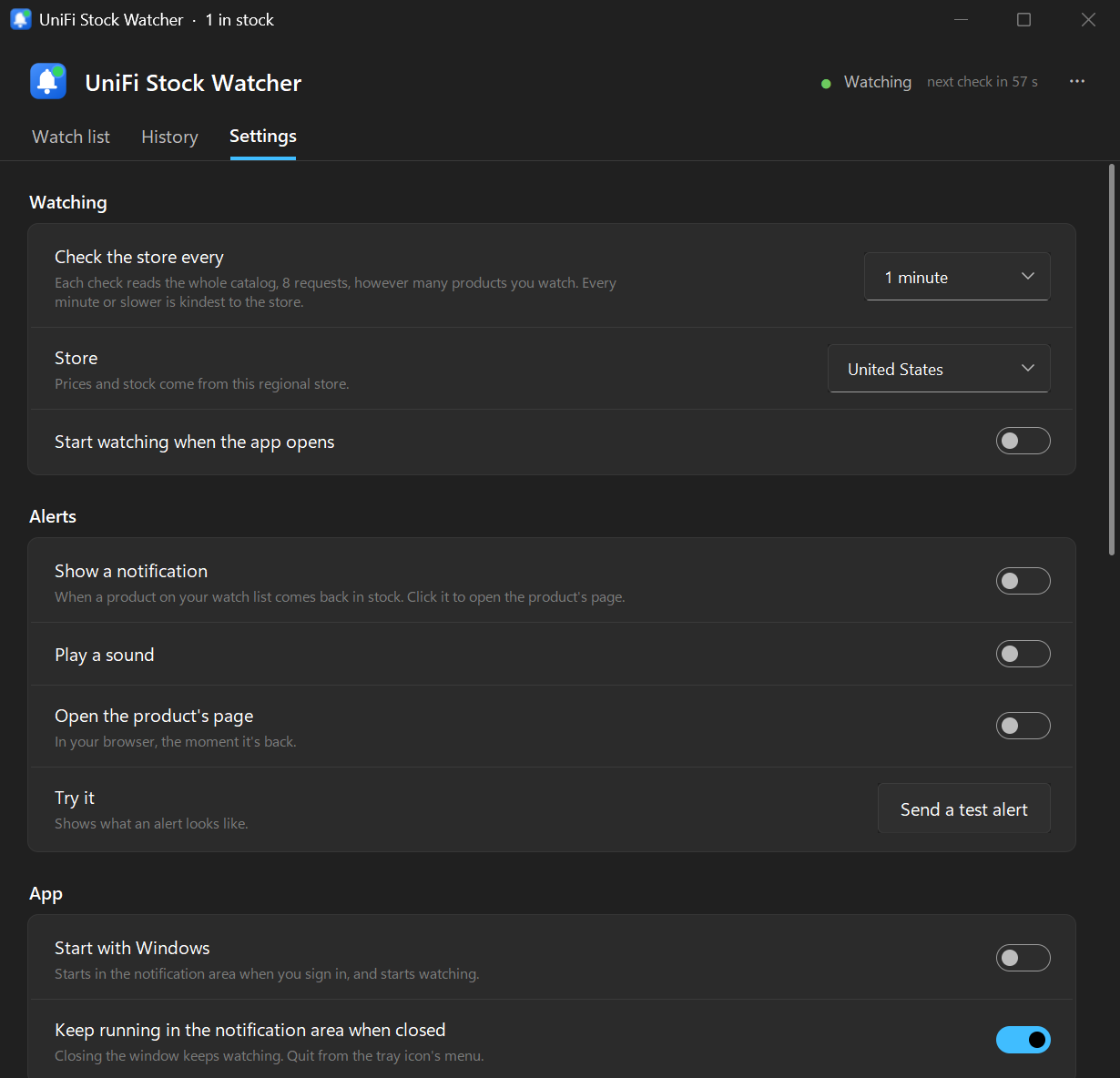
You can switch each of these off in Settings → Alerts. Either way, the product's card turns green with an Open in store button, and the icon in the notification area gets a green dot.
Each return to stock alerts once. A product that's already in stock when the app starts doesn't alert again, but one that came back while the app was closed does. Alerts that arrive within a few seconds of each other share one notification, which opens the app's window.
On your phone
Settings → Alerts on your phone sends every alert to your phone too, through the service you choose:
- ntfy: free, no account. Subscribe to a topic in the ntfy app, or use a server of your own.
- Pushover: your user key and an application token.
- Discord: a channel's webhook. The Discord app notifies you of the message.
- Slack: an incoming webhook for a channel.
- Any address: the alert as JSON, for Home Assistant, n8n, Zapier, IFTTT or a server of your own.
Your PC sends the alert when it finds the product, so it has to be on and watching. A service that's busy or can't be reached is tried twice more over about 25 seconds. Send a test shows what the service answered. The address or key stays in the settings file on your PC, and the app's log only ever names the service, never the address.
Per-product alerts and price changes
- Favorites. The ★ on a card pins the product to the top of your list. Settings → Alerts → Only for favorites alerts only for starred products, and the others are still checked and recorded. Your phone has its own Only for favorites, so the others can still alert on the PC.
- Mute. The bell on a card silences one product. A muted product is still checked and kept in the history. Unmuting a product that's in stock waits for its next return to stock rather than alerting straight away.
- Price drops. Settings → Alerts → Tell me when a price drops alerts you, and your phone if that's on, when a product you watch gets cheaper.
- Every price change is recorded. The history keeps each price change of a watched product, alert or not. Each price is compared with the last one recorded, so a change that happened while the app was closed counts too. A product the store hasn't priced yet doesn't count as a change, and neither does switching to a store with another currency.
- Changing store (United States, Europe, United Kingdom or Canada) starts a new baseline. A product that's already in stock in the new store doesn't alert, but its next return does.
The watch list and history
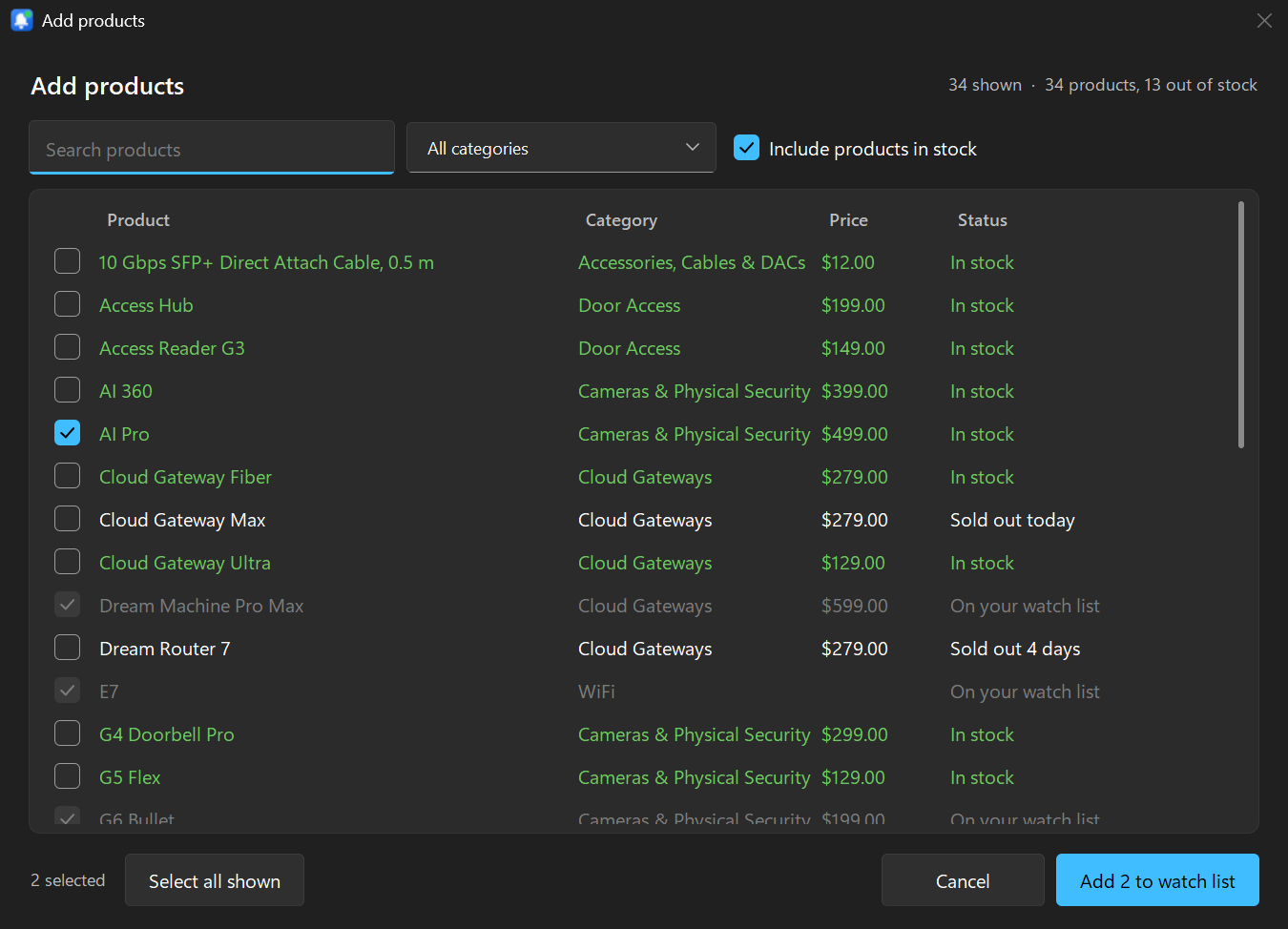
Add products… opens the store's live catalog. Search it, filter it by category, and tick the products you want. It lists sold-out products, with how long each has been out. Tick Include products in stock to see everything.
Each card on your list shows the product's stock and price. For a sold-out product, it also shows the store's restock estimate and how long it's been out, like back ~7 Nov · sold out 13 days. ⋯ on a card has Check now, Copy link, Mute alerts and Remove, and double-clicking a card opens the product's page. Settings → Watch list exports your list and imports it again.
Below the list are two views. Store changes is a live feed of every product coming into or going out of stock anywhere in the store, and Activity shows what the watcher did.
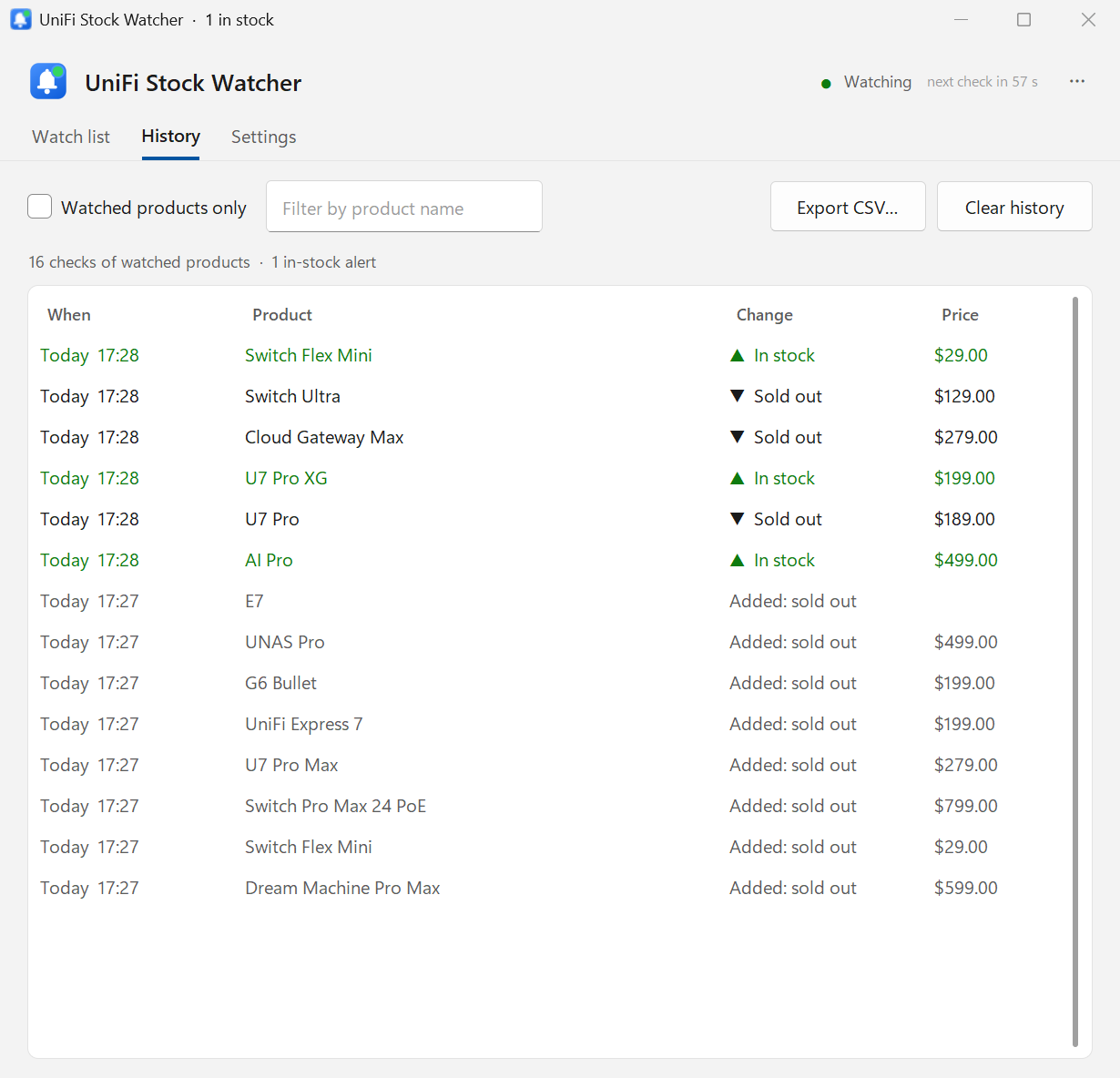
History records changes, not checks. It logs each time a watched product goes in or out of stock or changes price, and every stock change anywhere in the store. It keeps the latest 5,000 events, and drops store-wide ones first when it's full. You can search it, and Export CSV… saves what the list shows, as a file that opens in Excel with € and £ intact.
All of it stays on your PC, in %APPDATA%\UniFi Stock Watcher, or beside the program for the portable copy.
The pictures are from the app's demo mode: real product names with made-up stock, prices and dates.
Signed in-app updates
Once a day, the app asks GitHub for the latest release's latest.json. It's a small manifest naming the version, and the size and SHA-256 hash of each download. You can turn the check off in Settings → Updates.
- The manifest is signed with the project's Ed25519 key. The app checks the signature against the public key built into it, and ignores a manifest whose signature doesn't match.
- Only a newer version is offered. The app never goes back a version.
- Nothing is downloaded until you click Install. The download has to match the signed size and hash, or it's deleted.
- Then it installs. An installed copy runs the new installer silently, which waits for the app to close and then starts the new version. A portable copy unzips the new version to a temporary folder and swaps its program files in place, never the watch list beside them. If the swap fails, everything is put back and the old version starts again.
Separately, the installer and both programs are code-signed by James Cupps, which is the publisher Windows names. Before a release is published, its exact files are installed, started, and updated to from the previous release on a fresh Windows machine on GitHub. Only the release's own signing step can use the signing key.
What leaves your PC
The app reads the store's public catalog, and asks GitHub once a day for updates. It sends nothing about you, your watch list or your PC anywhere. Alerts on your phone go only to the service you choose, with the product's name, price and link.
Back to UniFi Stock Watcher: download it, see more screenshots, and install it with Scoop.
The source, the full README and every release are on GitHub.